 BatchOwl
How to delete past events in Google Calendar
Updated October 28, 2026
Old events pile up: years of meetings, finished classes, trips you've already taken. Google Calendar has no "delete everything before this date" button, but you can clear them out. Pick the method that matches how many there are.
First: do you need to delete them?
Keeping old events does no harm, and they're often useful later ("when did I last see the dentist?"). If what bothers you is clutter in search or in Schedule view, deleting is fine. If you only want them out of sight, consider moving them to a separate calendar and hiding it instead.
Either way, back up first: open Settings (the gear at the top right), choose Import & export and click Export. You get a file of every calendar you own that you can import again later.
A handful of old events
Open each event and click Delete event (the bin icon). Schedule view, or searching for a word in the titles, makes them quicker to find.
Repeating events that are over
If a weekly event has ended and you want all of it gone, open any occurrence, click Delete event and choose All events. That removes past and future occurrences of the series in one go.
If the series is still running and you only want the old ones gone, Google Calendar can't do that directly: "This and following events" keeps the past and removes the future, which is the opposite. A bulk tool (below) can remove past occurrences one by one while the series carries on.
Hundreds of old events
If they're all in a calendar you no longer need
Deleting the whole calendar is fastest: Settings, click the calendar under Settings for my calendars, then Remove calendar and Delete. This also deletes its future events, so only do it when the whole calendar can go.
With a short Apps Script (free, some code)
Open script.google.com, create a project, paste this, set the dates and press Run. It deletes one-off events in your main calendar between the two dates and leaves repeating events alone:
function deletePastEvents() {
  const from = new Date('2020-01-01');
  const to = new Date('2026-01-01');             // up to, not including
  const cal = CalendarApp.getDefaultCalendar();  // your main calendar
  const events = cal.getEvents(from, to).filter(e => !e.isRecurringEvent());
  Logger.log('Found ' + events.length + ' events');
  events.forEach(e => e.deleteEvent());
}
Run it once with the last line removed to check the count first: there's no preview and no undo. If it stops with an error about too many changes, Google is rate-limiting you; wait a few minutes and run it again.
With Calendar Bulk (no code, with a preview and undo)
Calendar Bulk is a Chrome extension we make for jobs like this:
- Pick the calendar, open Dates and choose Past 12 months, or pick any start and end day.
- Tick Include repeating events if you also want old occurrences of series that are still running. Future occurrences aren't touched.
- Click Find events, tick the checkbox at the top to select them all, untick anything you want to keep, and press Delete.
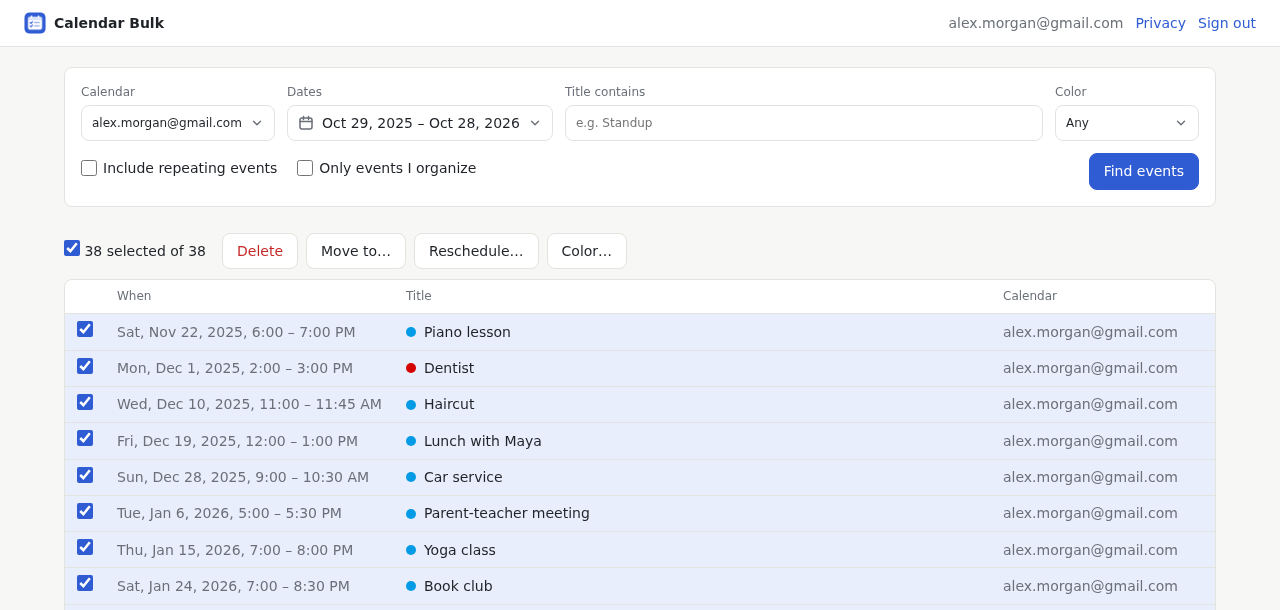
Events you were invited to are only removed from your calendar, not the organizer's. If you selected too much, Undo last action brings everything back.
If you deleted something by mistake
Deleted events stay in the calendar's trash for 30 days: open Settings, choose Trash, tick them and click Restore all selected. After that, import the backup you exported.
Clear out a year of old events in one go
Calendar Bulk lists the events first, deletes them together, and can undo. Your first 30 events are free; after that it's a one-time $9.
See Calendar BulkMore guides
- How to undo a Google Calendar import and remove duplicate eventsTell real duplicates from a calendar shown twice, then clean up the extra copies.
- How to move multiple Google Calendar events at onceMove a batch to another calendar, or push a whole week of meetings later.
- How to delete all events with the same name in Google CalendarRemove a repeating series, or dozens of separate events that share a name.
- How to delete all events from a Google Calendar (and keep the calendar)Empty your main calendar, a secondary one, or just one date range.
- How to remove a class schedule from Google Calendar after the semesterRepeating classes, a subscribed school calendar or an imported timetable.