 BatchOwl
How to undo a Google Calendar import and remove duplicate events
Updated October 12, 2026
You imported a calendar file, and now every meeting shows up twice. Google Calendar has no undo for imports, but you can get back to a clean calendar. First, work out which kind of duplicate you have, because the fix is different.
Step 1: Real duplicates, or one calendar shown twice?
Click one of the two copies and look at which calendar it belongs to (the name is shown under the event's details). Then click the other copy.
- Both copies are in the same calendar. These are real duplicates, usually from importing the same file twice, or importing events that were already synced. Continue to step 2.
- The copies are in different calendars. You're probably seeing the same events twice, for example your work calendar added to your personal account as well as being in your work account. Nothing is duplicated. Uncheck one of the two calendars in the list on the left to hide it. Don't delete these: deleting from either calendar deletes the original event.
Step 2: Remove the extra copies
How you do this depends on how many there are.
A handful of duplicates
Click each extra copy and press Delete event (the bin icon). If the duplicate is a repeating event, choose All events so the whole duplicated series goes at once. Make sure you're deleting the copy and not the original: check the calendar name each time.
The whole import went into its own calendar
If you imported into a separate calendar, the cleanest undo is to delete that calendar, which removes everything it contains. Your other calendars aren't touched.
Everything was imported into your main calendar
This is the hard case. Google Calendar can only delete events one at a time, or wipe your main calendar completely (Settings and sharing, then Remove calendar, then Delete), which also deletes every event you had before the import. Wiping is only a good idea if you can re-import a clean copy of everything afterwards.
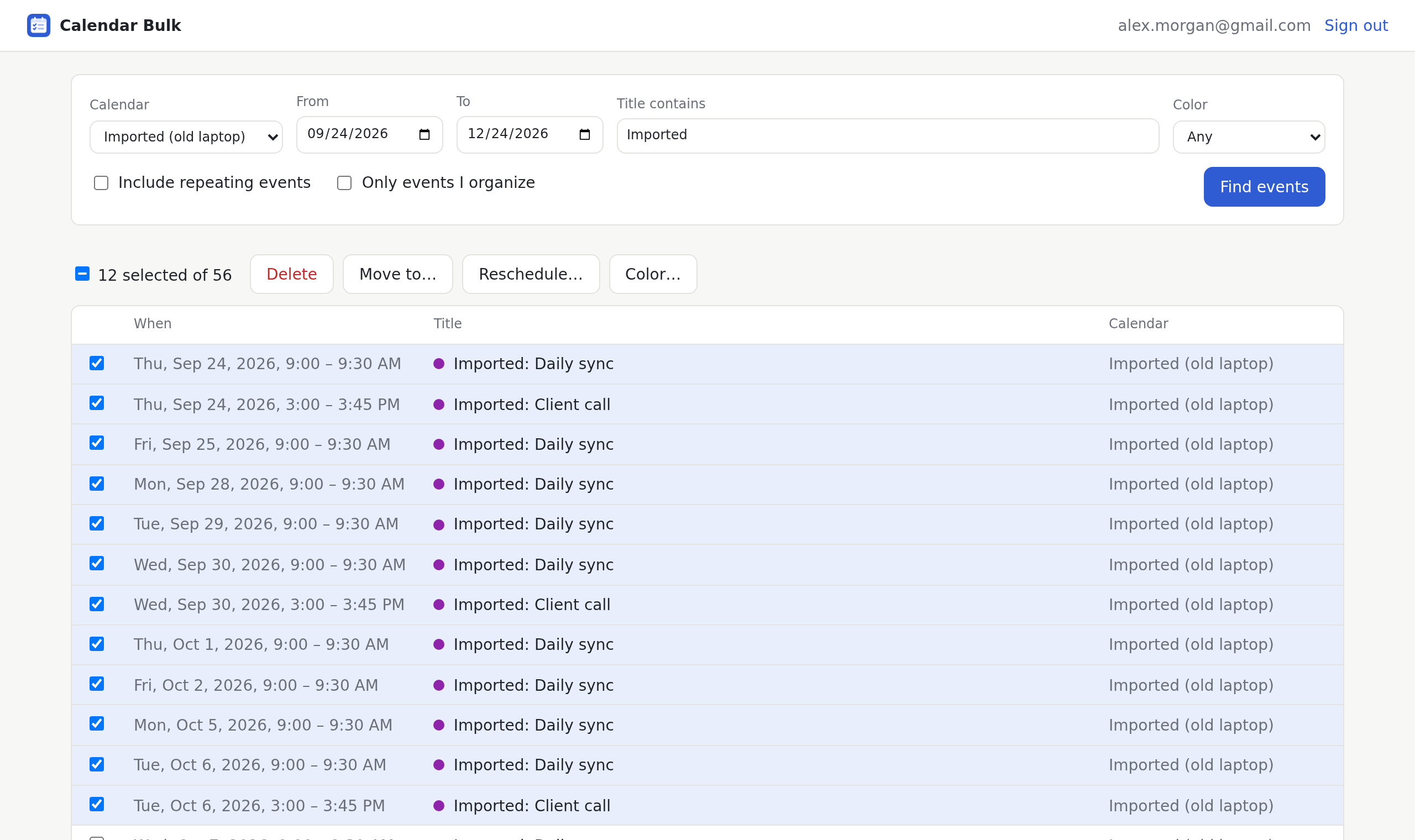
For hundreds of duplicates, a bulk tool is far quicker. Calendar Bulk, a Chrome extension we make, has a Select duplicates button: it finds events with the same title and the same start and end time in the same calendar, selects every extra copy, and keeps one of each. You check the list, press Delete, and if anything looks wrong, Undo brings the events back.
Step 3: If you deleted the wrong ones
Deleted events stay in the calendar's trash for 30 days. Open Settings (the gear at the top right), choose Trash, tick the events and click Restore all selected. One exception: occurrences removed with "This and following events" skip the trash and can't be restored.
How to import safely next time
- Create a new calendar first, for example "Imported from Outlook".
- In Settings, open Import & export, choose your file, and pick that new calendar as the destination. The default is your main calendar, which is how most of these messes start.
- Check the result. If it went wrong, delete that one calendar and try again.
- Import each file only once. Google Calendar doesn't skip events it already has, so importing the same file twice doubles everything.
Clean up hundreds of duplicates in one go
Calendar Bulk selects the extra copies for you and keeps one of each. Your first 30 events are free; after that it's a one-time $9.
See Calendar Bulk